
You need staff access to the store's Shopify admin, access to the onelive-pos-app Gadget environment (production), and the event's venue name and date. Example values below come from the Justin Hayward POS store and the 9/20/2026 Arcada Theatre event — substitute your own.
Path A — Quick fix in Shopify adminTry this first. It fixes the event without touching the database directly.
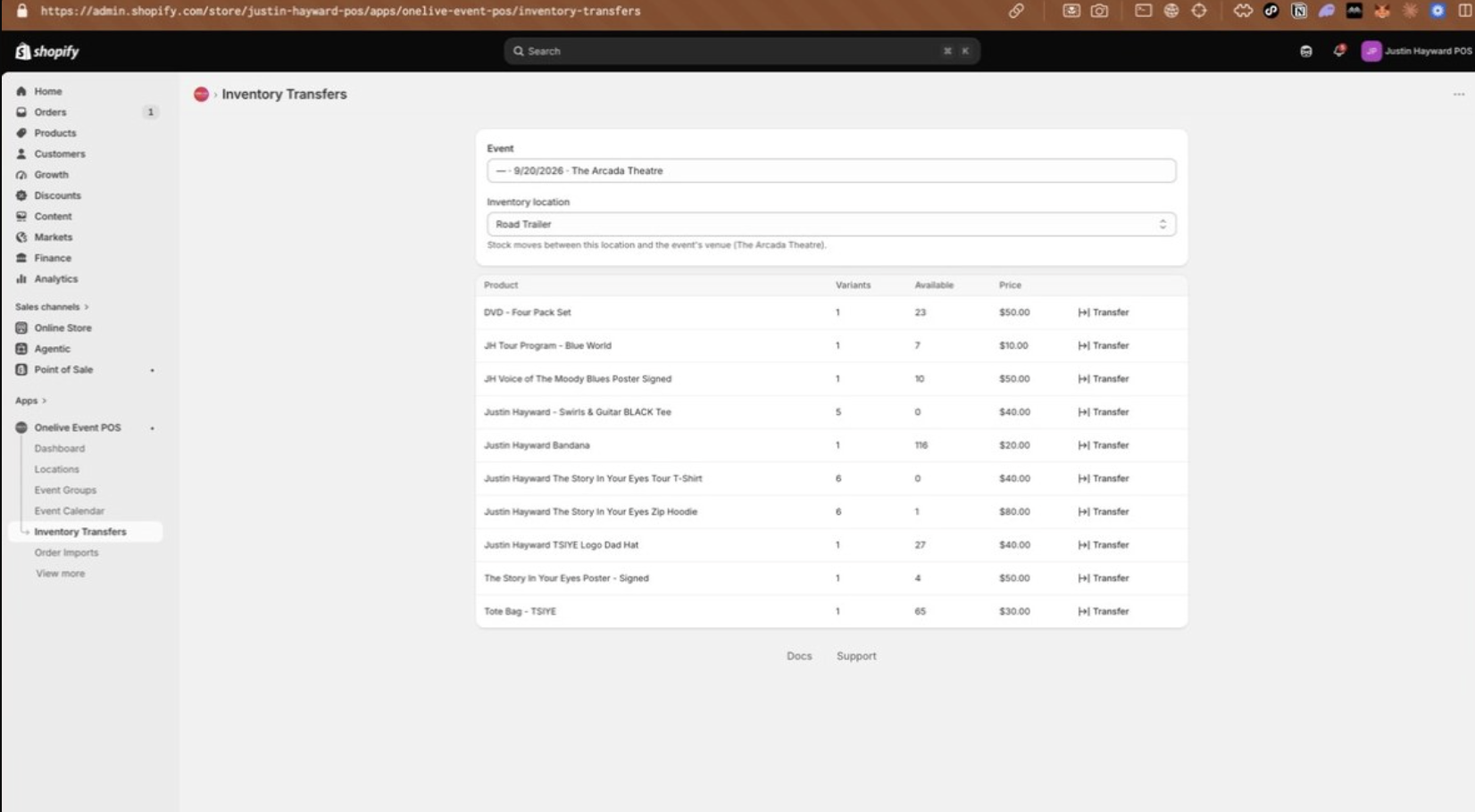
- In Shopify admin, open Apps → Onelive Event POS → Inventory Transfers and select the event. If the link is missing you'll see the warning below.
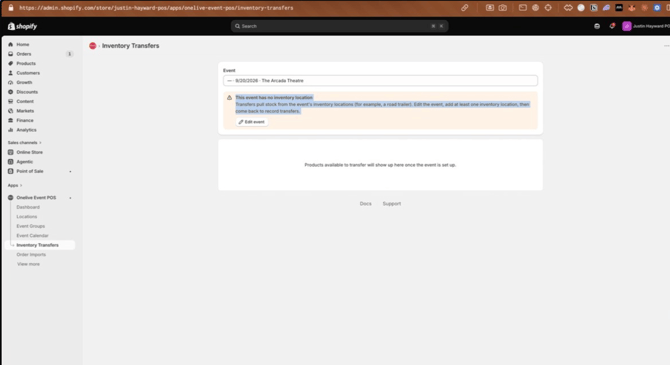
- Click Edit event in the warning banner (or find the event on the Event Calendar and choose Edit event from its ⋯ menu).
- Under Inventory locations, click Select locations and check the road trailer (usually named "Road Trailer").
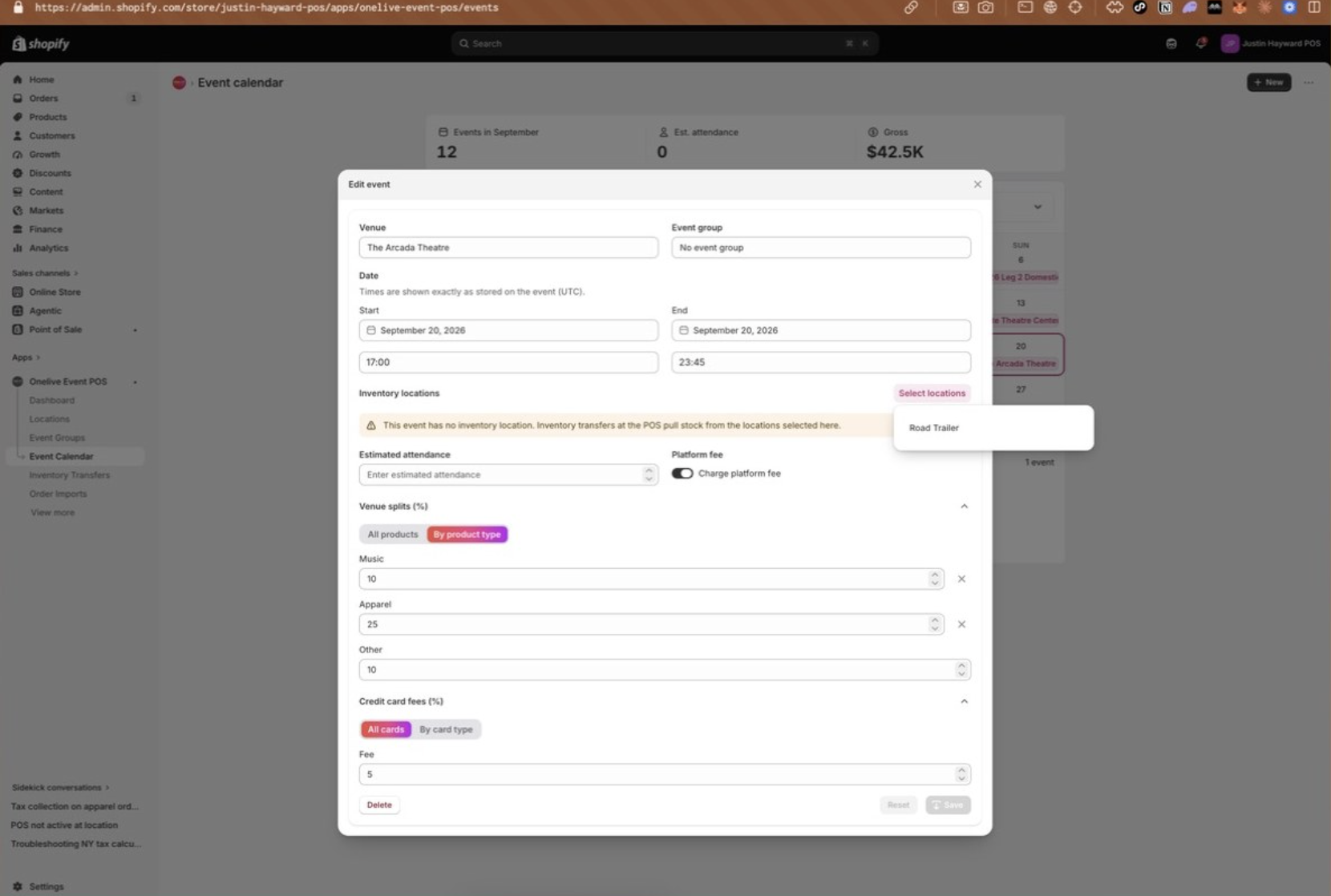
- Click Save, then return to Inventory Transfers and re-select the event. If the warning is gone, skip to Verify the fix. If the location won't save or the warning persists, use Path B.
This recreates the missing event–location link directly in the database. Open onelive-pos-app.gadget.app and make sure the environment selector (top left) says production. You will collect three IDs, then run one create action.
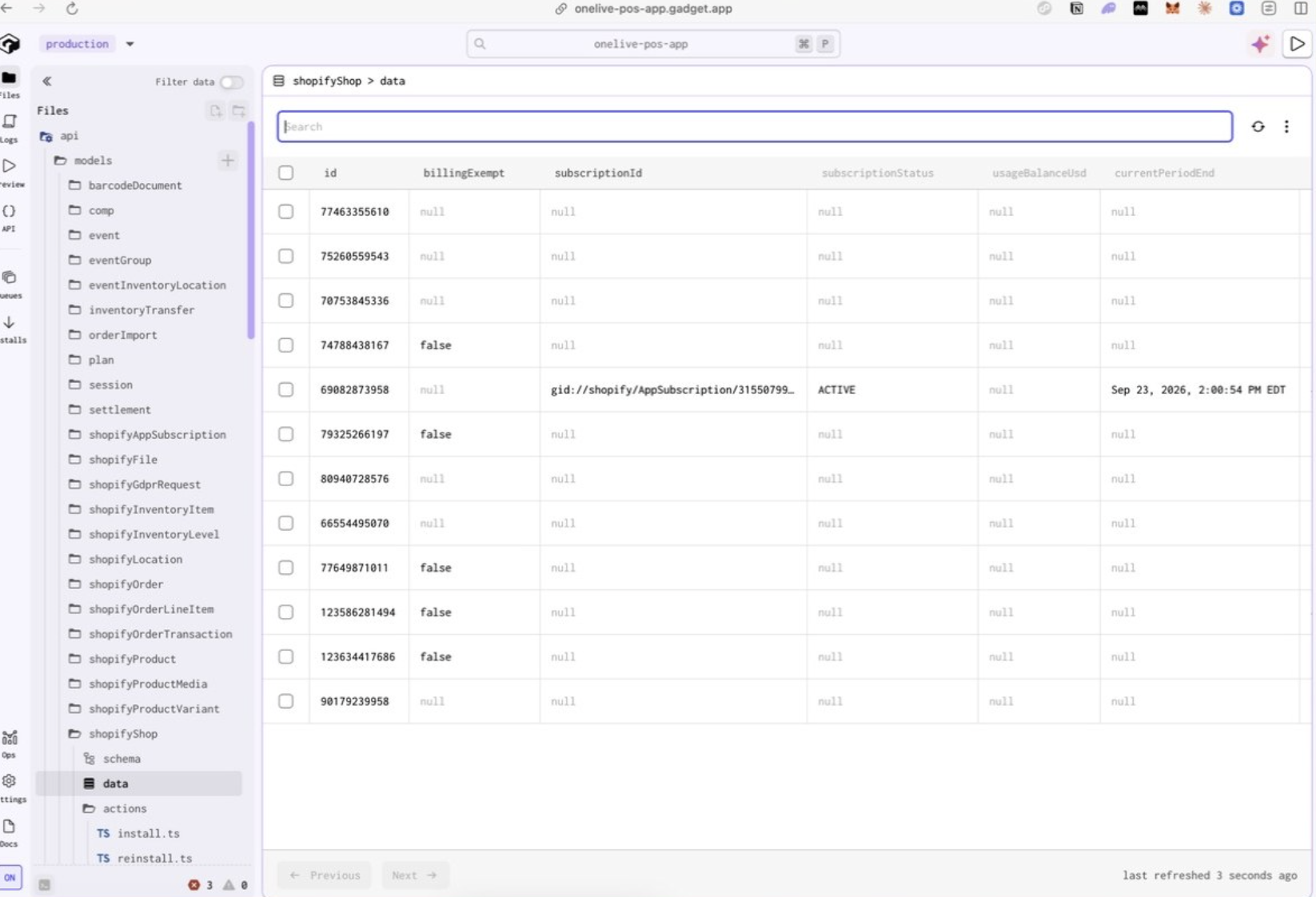
1. Shop ID. Open api/models/shopifyShop → data and copy the id of the target store's row (example: 77463355610).
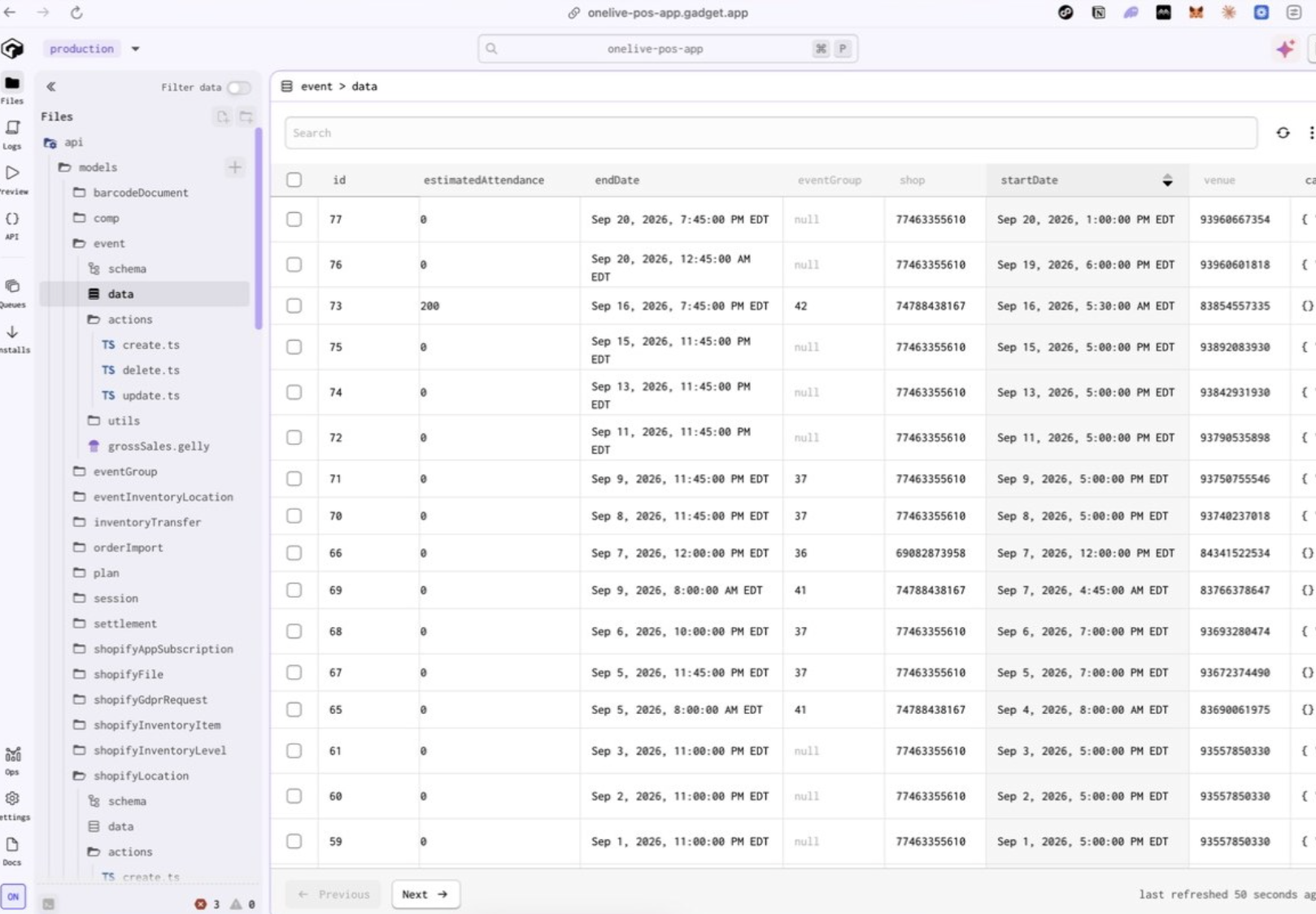
2. Event ID. Open api/models/event → data. Search by the shop ID, sort by startDate, and find the row whose start date and venue match the event. Copy its id (a small number, example: 77). Match on the start date — an event that ends after midnight belongs to the previous day's show.
3. Inventory location ID. Open api/models/shopifyLocation → data, search by the shop ID, and copy the id of the row where roadTrailer is true (example: Road Trailer, 93812719834). The venue is a separate row with venue: true — the event pulls stock from the trailer, so the trailer is the one to link.
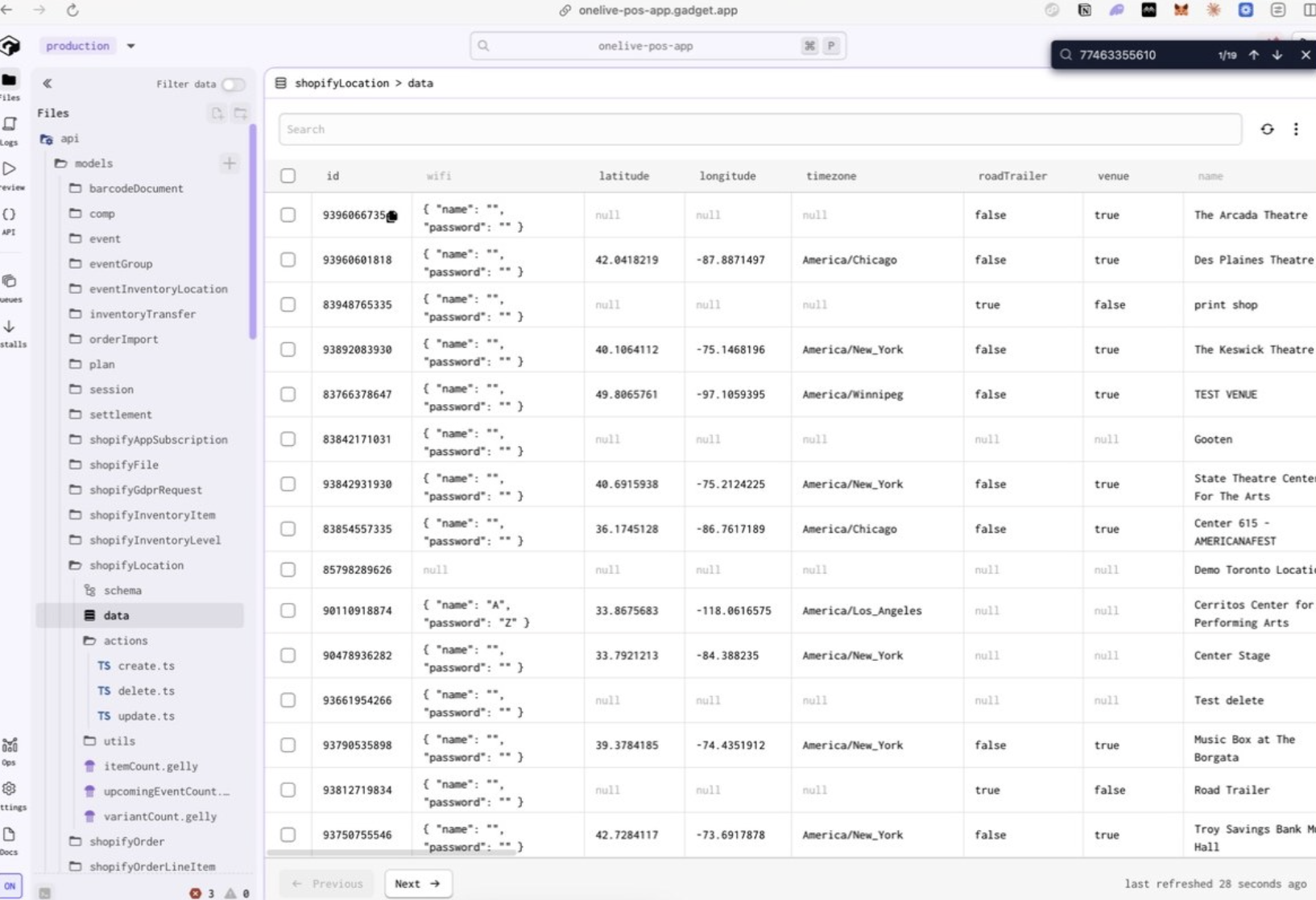
4. Create the link. First check api/models/eventInventoryLocation → data to confirm no row already links this event. Then open the API playground ({} icon in the left rail) and run:
await api.eventInventoryLocation.create({ event: { _link: "<EVENT_ID>" }, inventoryLocation: { _link: "<LOCATION_ID>" }, shop: { _link: "<SHOP_ID>" }, });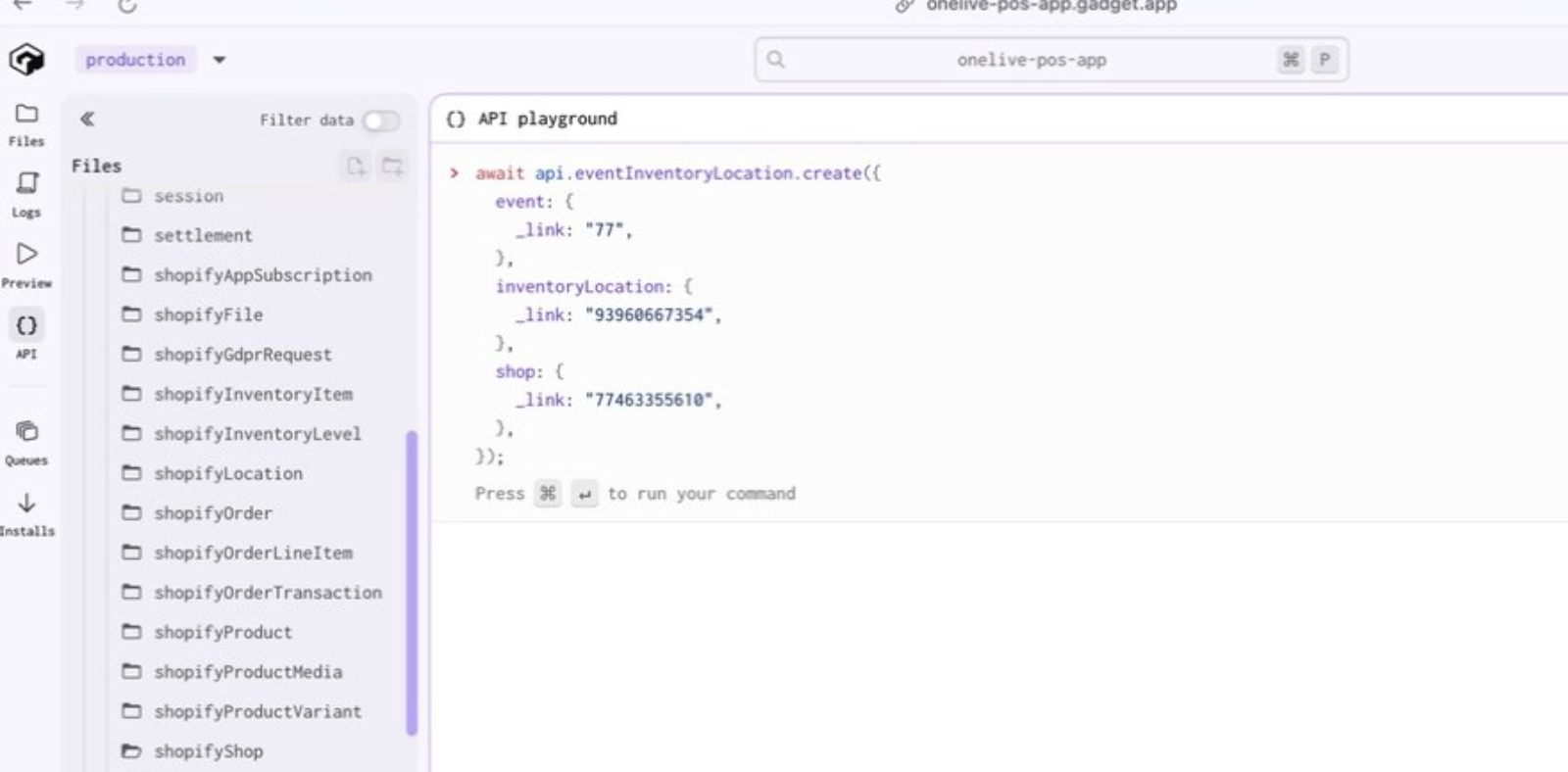
This writes production data — double-check all three IDs before running.
Verify the fix
Back in Shopify admin, open Onelive Event POS → Inventory Transfers, select the event, and pick the inventory location. The transferable product list should load, with the note "Stock moves between this location and the event's venue."
Notes
- Path B writes production data. Confirm the shop, event, and location IDs before running the create, and avoid creating a duplicate link.
- The shop ID and road-trailer location ID stay the same per store, so repeat fixes for the same store only need a new event ID.
- Log each repair (store, event, location, date) so recurrence can be tracked — the underlying cause of the missing link is still being addressed by engineering.